
Set up your accounts so Caeruz can run your ads and posts
This guide takes you from nothing to fully connected: your Facebook Page, Instagram, Meta ad account and Google Ads account, all owned by your dealership and connected to Caeruz. Plan on about an hour. Do the steps in order; each one depends on the one before it.
- Your personal Facebook profileMeta business tools are always managed through a real person's profile. Use your own, not a shared one.
- A phone with an authenticator appMeta and Google both require two-step login to manage ad accounts.
- Your dealership's detailsLegal business name, street address, phone, website and a business email.
- A business card or bank accountEach platform bills you directly for ads. Caeruz never sees or stores your card.
- The Instagram loginThe username and password of the dealership's Instagram, if you already have one.
- A Google accountIdeally one owned by the dealership (for example ads@yourdealership.com) rather than a salesperson.
| Account | What Caeruz does with it |
|---|---|
| Meta ad account | Reads your campaigns and spend, keeps spend inside the monthly ceiling you set, and runs ads from your inventory. |
| Facebook Page | Posts your vehicles after you approve them, and receives the leads from your Facebook lead forms. |
| Instagram business account | Posts your vehicles after you approve them, and receives leads from Instagram lead forms. |
| Meta dataset | Tells Meta which leads became qualified buyers and sales, so your ads find more people like your buyers. |
| Google Ads account | Reads your campaigns and spend, and keeps spend inside your monthly ceiling. |
Everything stays yours. All accounts are created under your dealership and billed to you. Caeruz connects with your permission and you can disconnect it at any time from Caeruz or from Meta and Google.
Meta: Facebook and Instagram
Meta Business Suite is where a dealership's Page, Instagram, ad account and data live together. You'll work at business.facebook.com on a computer.
Secure your Facebook login
Meta won't let anyone manage a business portfolio or ad account without two-factor authentication. Turn it on for your own profile first.
- On Facebook, open your profile picture menu and choose Settings & privacy › Settings.
- Open Accounts Center › Password and security › Two-factor authentication.
- Pick your profile, choose Authentication app, and scan the code with your authenticator app. Text message works too, but an app is more reliable.
- Save the recovery codes Meta shows you somewhere safe.
Create a business portfolio
The business portfolio (Meta used to call it Business Manager) is the container that owns your Page, Instagram and ad account. If your dealership already has one, skip to M3 and use it.
- Go to business.facebook.com.
- Open the account menu at the top left and choose Create a business portfolio.
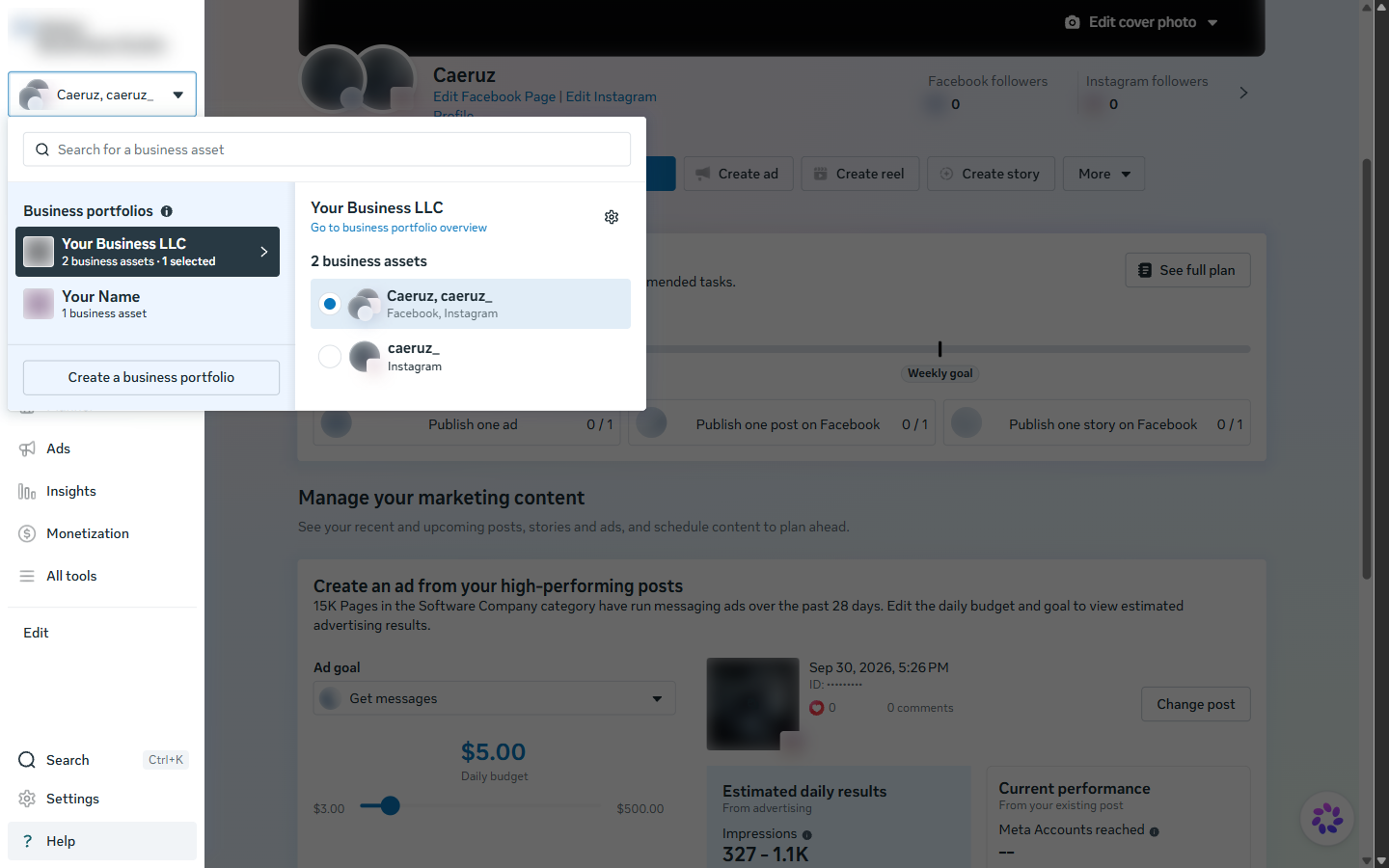
- Business portfolio name: your dealership's public name, the way customers know it. You can change it later.
- First and last name: your own name.
- Business email: an address at your dealership. Meta sends security notices here.
- Click Create, then confirm the email Meta sends you.
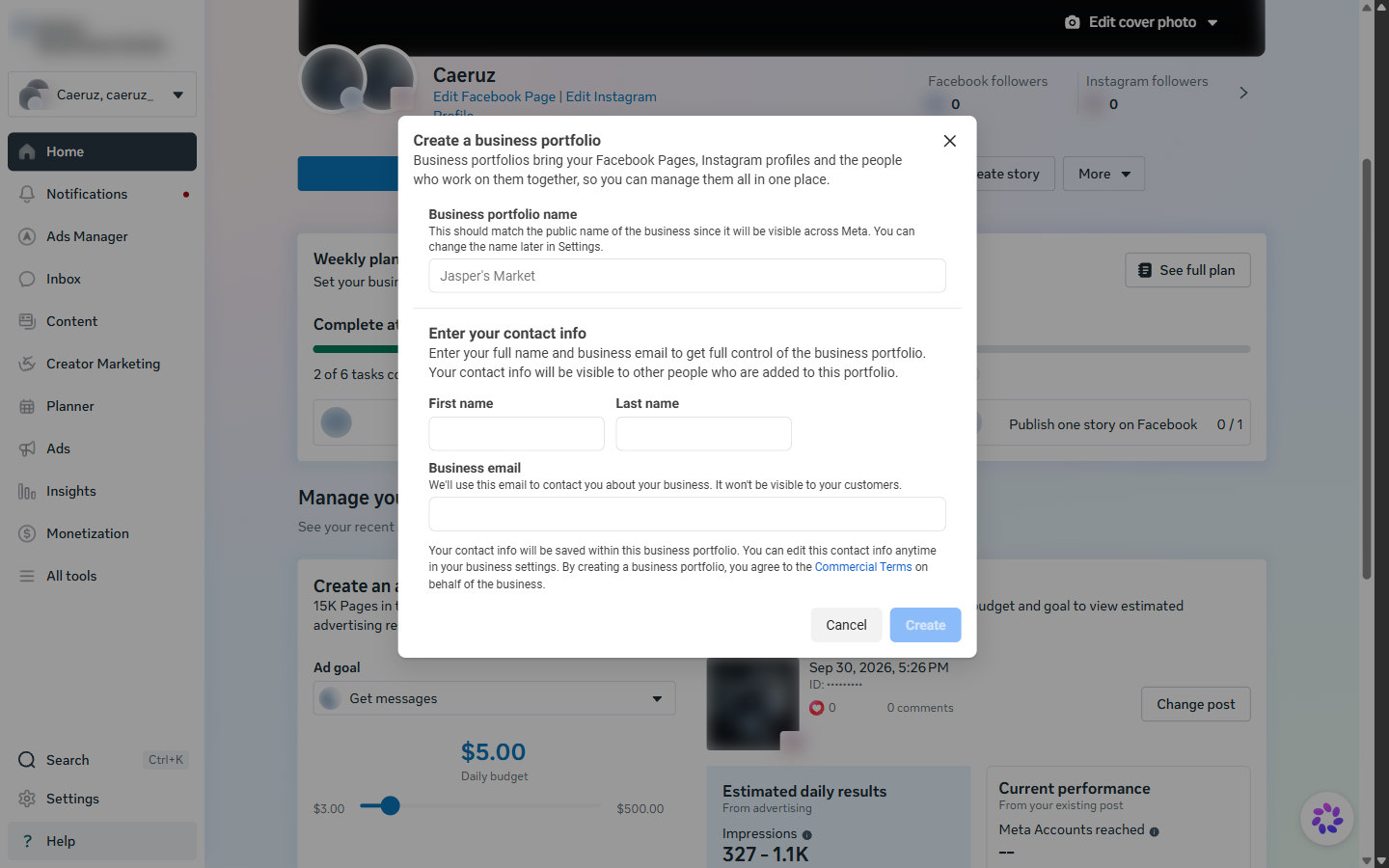
One portfolio per dealership. If you own more than one lot, give each its own portfolio so ads, leads and billing never mix.
Add your Facebook Page to the portfolio
- In Business Suite, open Settings › Business assets › Pages.
- Click Add and choose what fits:
- Add an existing Facebook Page if your dealership already has a Page and you're an admin of it.
- Create a new Facebook Page if you don't have one yet. Use the dealership's public name and the category Car dealership.
- Request shared access is for agencies. Don't use it for your own Page.
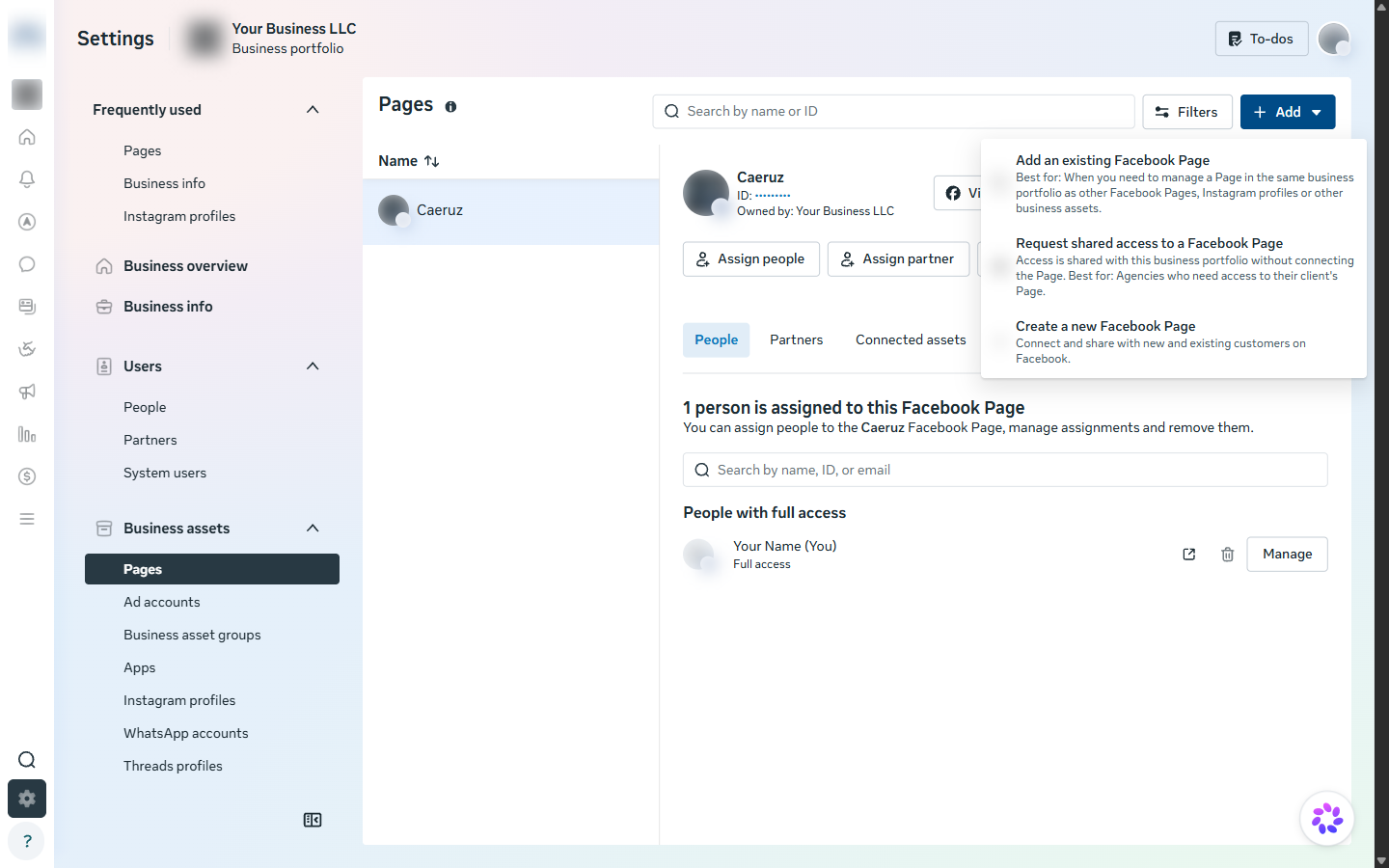
A Page can belong to only one portfolio. If a former agency or employee put it in theirs, ask them to remove it, or use "Request shared access" from their side to give it back.
Create the ad account
- Open Settings › Business assets › Ad accounts and click Add.
- Choose Create a new ad account. If your dealership already runs ads in an account you own, choose Add an existing ad account instead.
- Name: your dealership name plus "Ads".
- Time zone: your dealership's local time zone. Reports and the monthly budget follow it.
- Currency: US dollar.
- When asked who the account is for, choose My business.
- Assign yourself Full control when Meta asks who should have access.
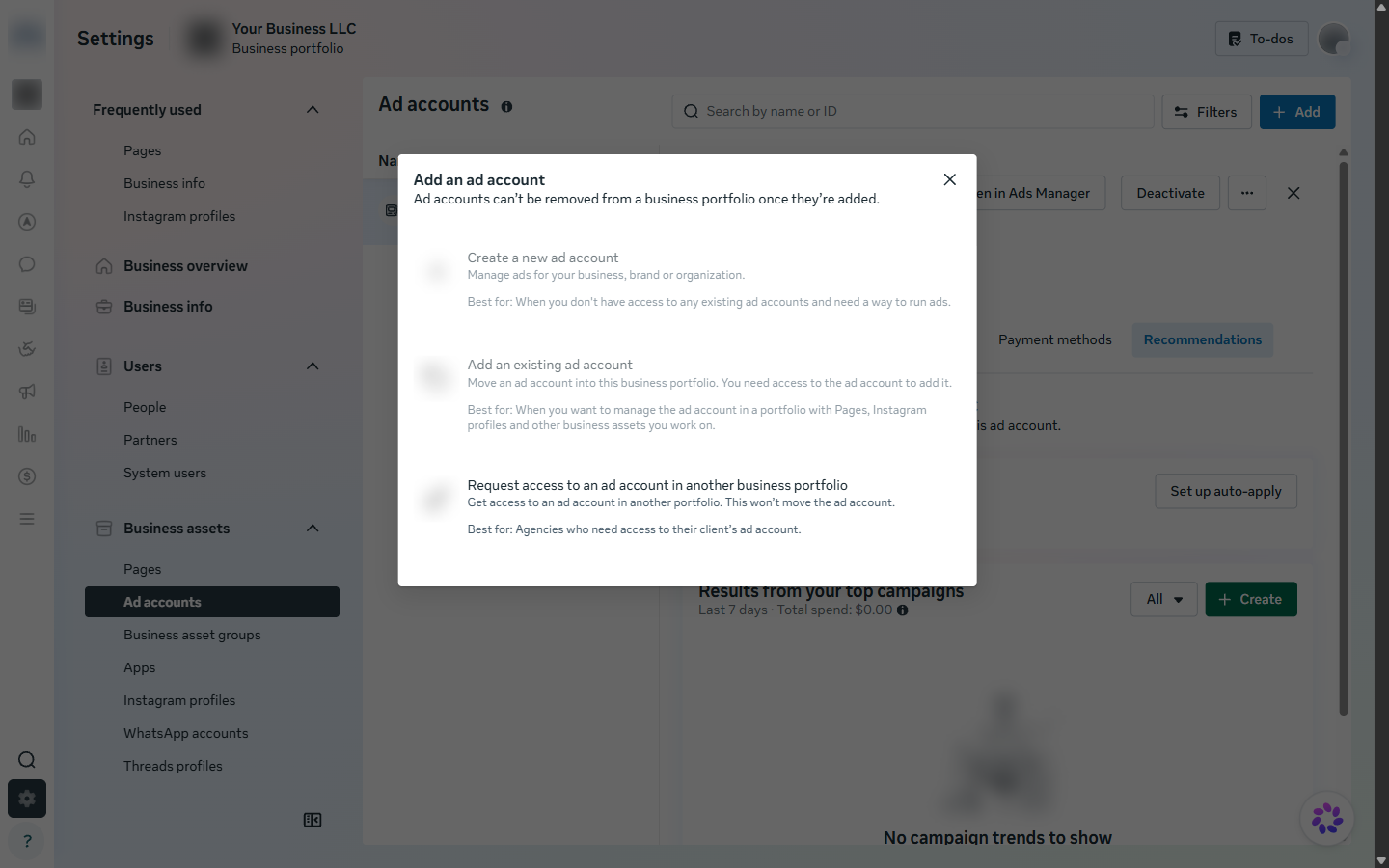
Time zone and currency can never be changed. Meta would make you open a new ad account. Double-check both before you click Create.
New portfolios can create only a small number of ad accounts at first. If "Create a new ad account" is greyed out, you've reached that limit; use the account you already have.
Add a payment method
An ad account without a payment method can't run ads, and Caeruz will show it as not ready.
- Open Settings › Billing & payments. Meta opens it in a new tab.
- Under Payment methods, pick your ad account in the list on the right.
- Click Add payment method and enter the dealership's business card or bank details.
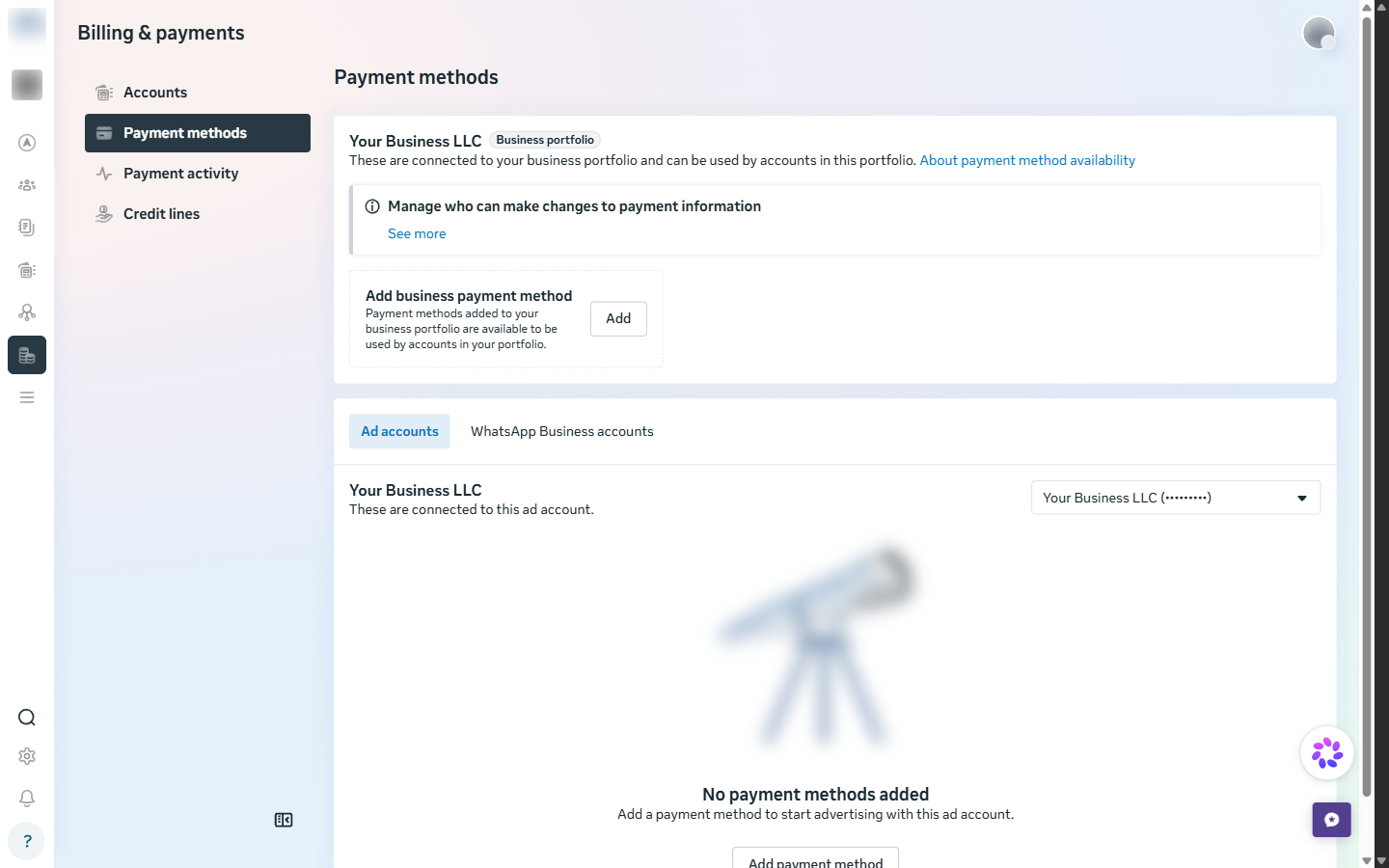
You set the ceiling in Caeruz. Meta bills the card for what your ads spend. Caeruz keeps spend inside the monthly budget you enter on the Paid Ads tab, and never changes your billing.
Make your Instagram a business account
Caeruz can post to and receive leads from Instagram only when it's a professional Business account. Switching is free, keeps your followers and posts, and makes the account public.
On the Instagram app:
- Go to your profile and tap the menu at the top right.
- Tap Settings and activity › For professionals › Account type and tools.
- Tap Switch to professional account, choose the category Car dealership, then choose Business.
On a computer, at instagram.com: More › Settings › For professionals › Account type and tools › Switch to professional account, then choose Business.
Then add the account to your portfolio:
- In Business Suite, open Settings › Business assets › Instagram profiles and click Add.
- Read the notice and click Add Instagram profile, then log in to the Instagram account when asked.
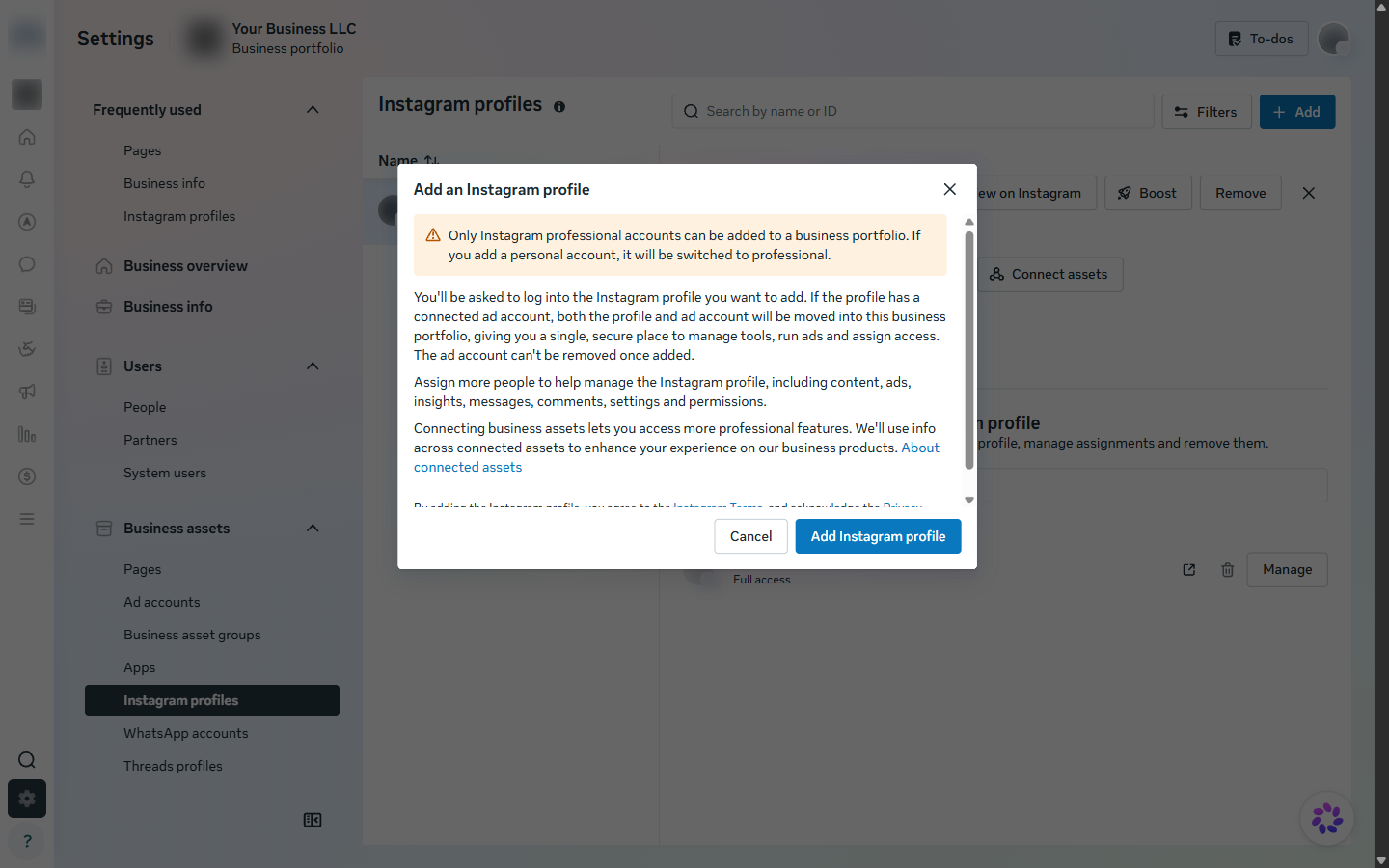
Don't have an Instagram yet? Create one in the Instagram app with the dealership's name and email, then do the switch above. Use a username customers will recognize.
Link Instagram to your Facebook Page
Caeruz reaches Instagram through your Facebook Page, so the two must be linked.
- In Settings › Business assets › Instagram profiles, select your Instagram account.
- Open the Connected assets tab and click Connect assets.
- Choose your Facebook Page and confirm. Connect your ad account the same way.
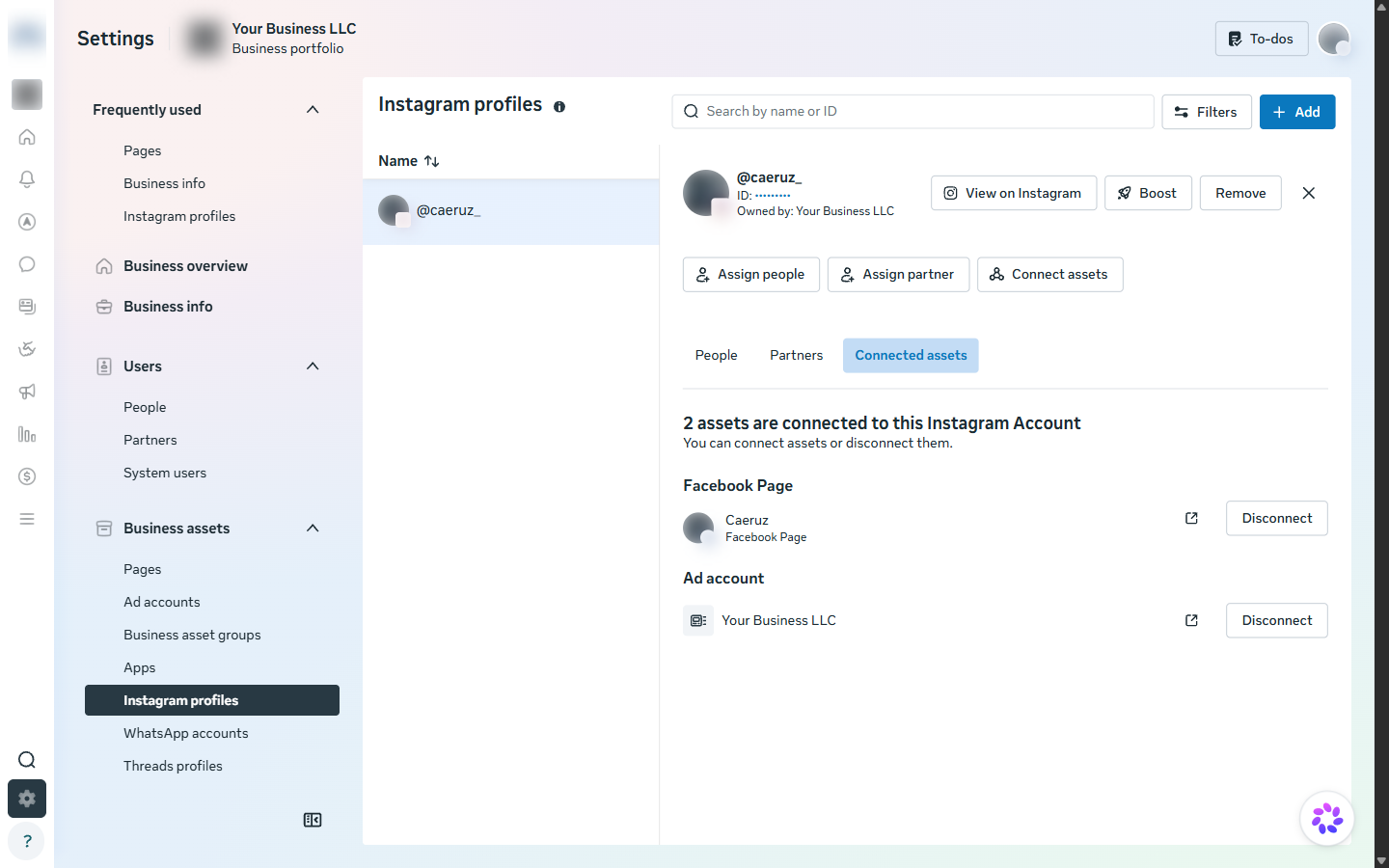
You can also do this from the Page itself: on Facebook, open your Page, then Settings › Linked accounts › Instagram › Connect account.
Same portfolio only. The Instagram account and the Page must be in the same business portfolio, and an Instagram account can be in only one portfolio at a time.
Create a dataset
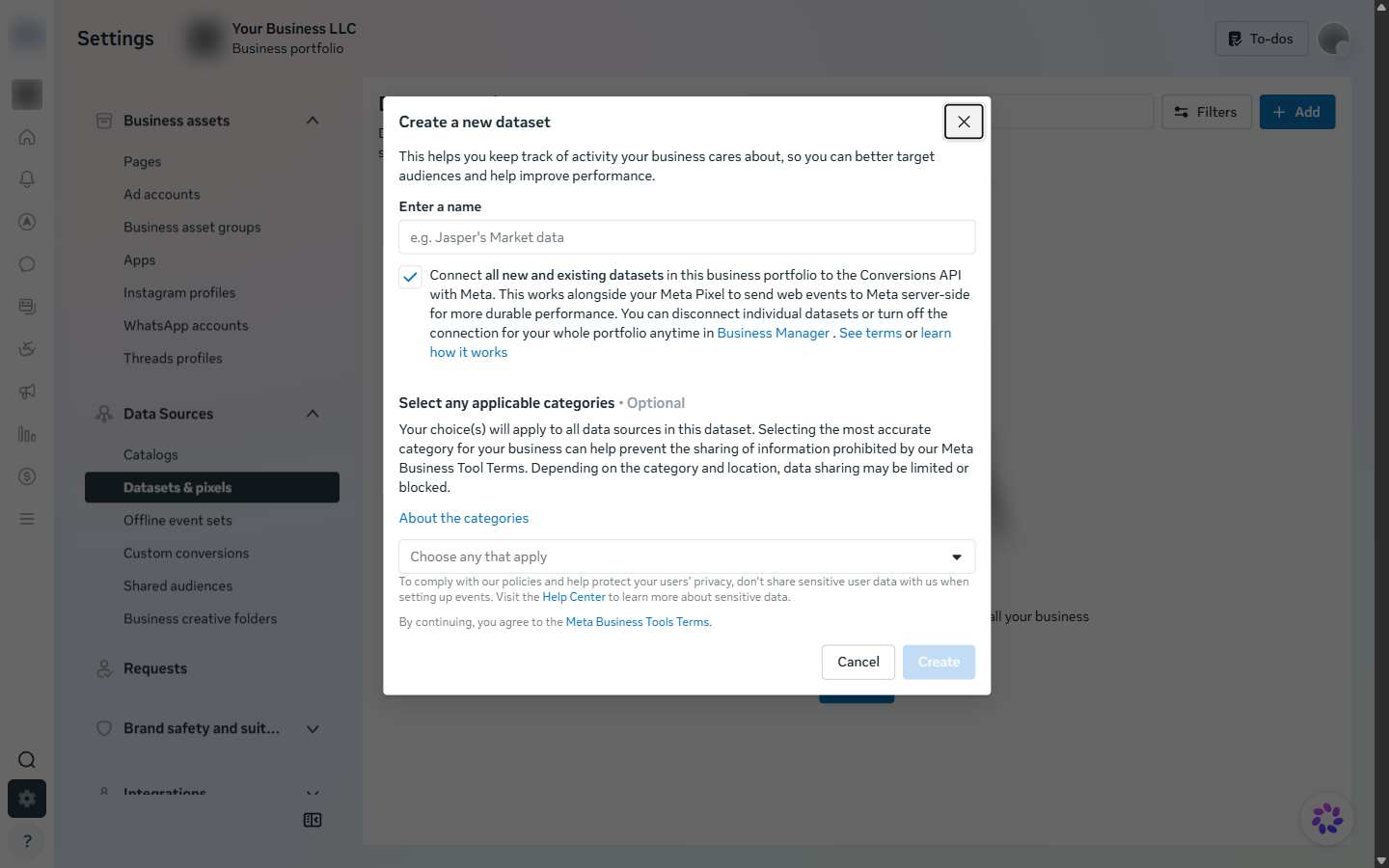
A dataset (Meta also calls it a pixel) is where Caeruz reports which leads became qualified buyers and sales. You don't need to install anything on your website for this; Caeruz sends the information directly to Meta.
- Open Settings › Data sources › Datasets & pixels and click Add.
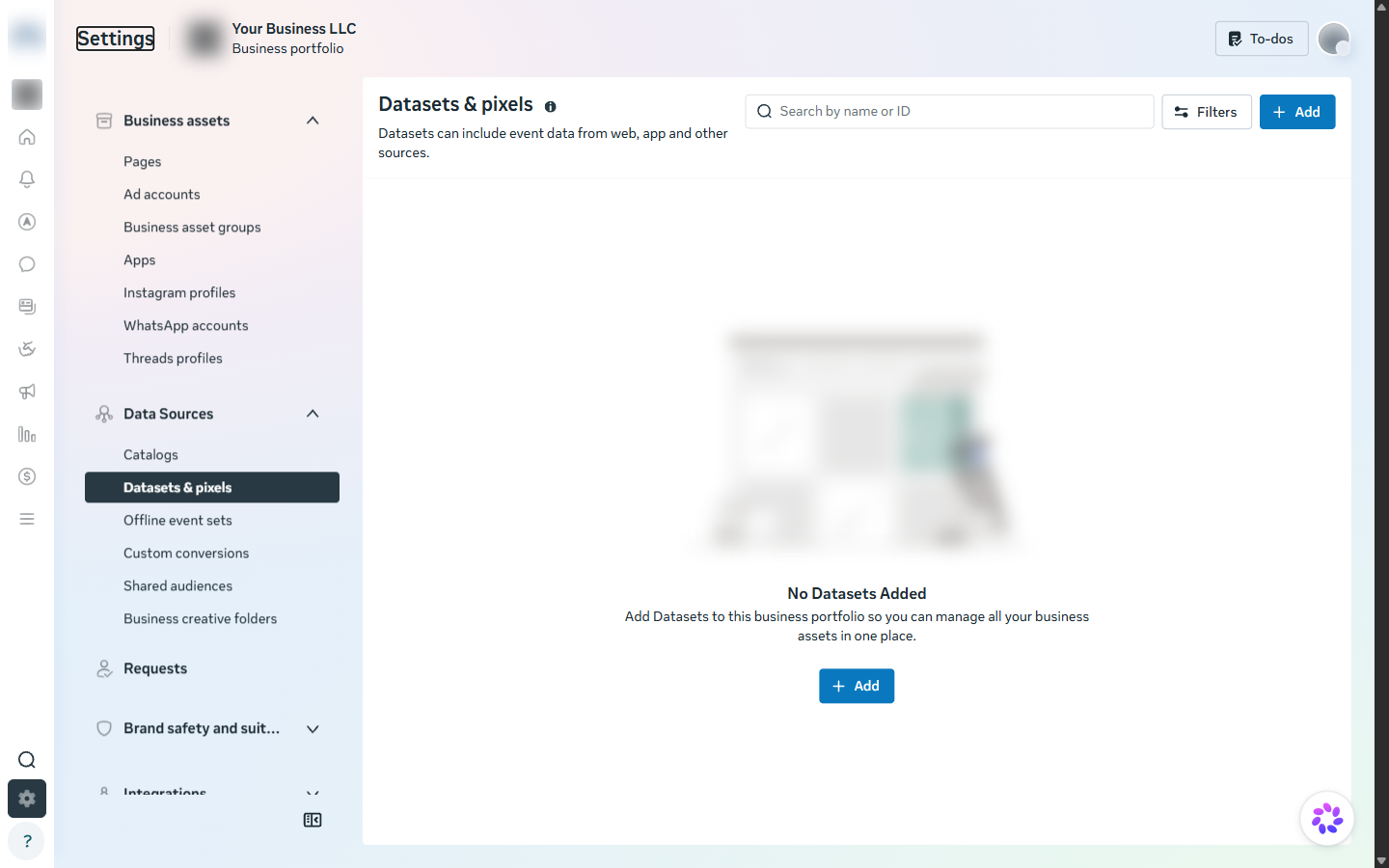
- Name: your dealership name plus "dataset".
- Leave the Conversions API box ticked.
- Leave categories empty unless your dealership sells its own financing (see the note), then click Create.
- Select the new dataset, open its Connected assets, click Add assets, and add your ad account. Caeruz only lists datasets connected to your ad account.
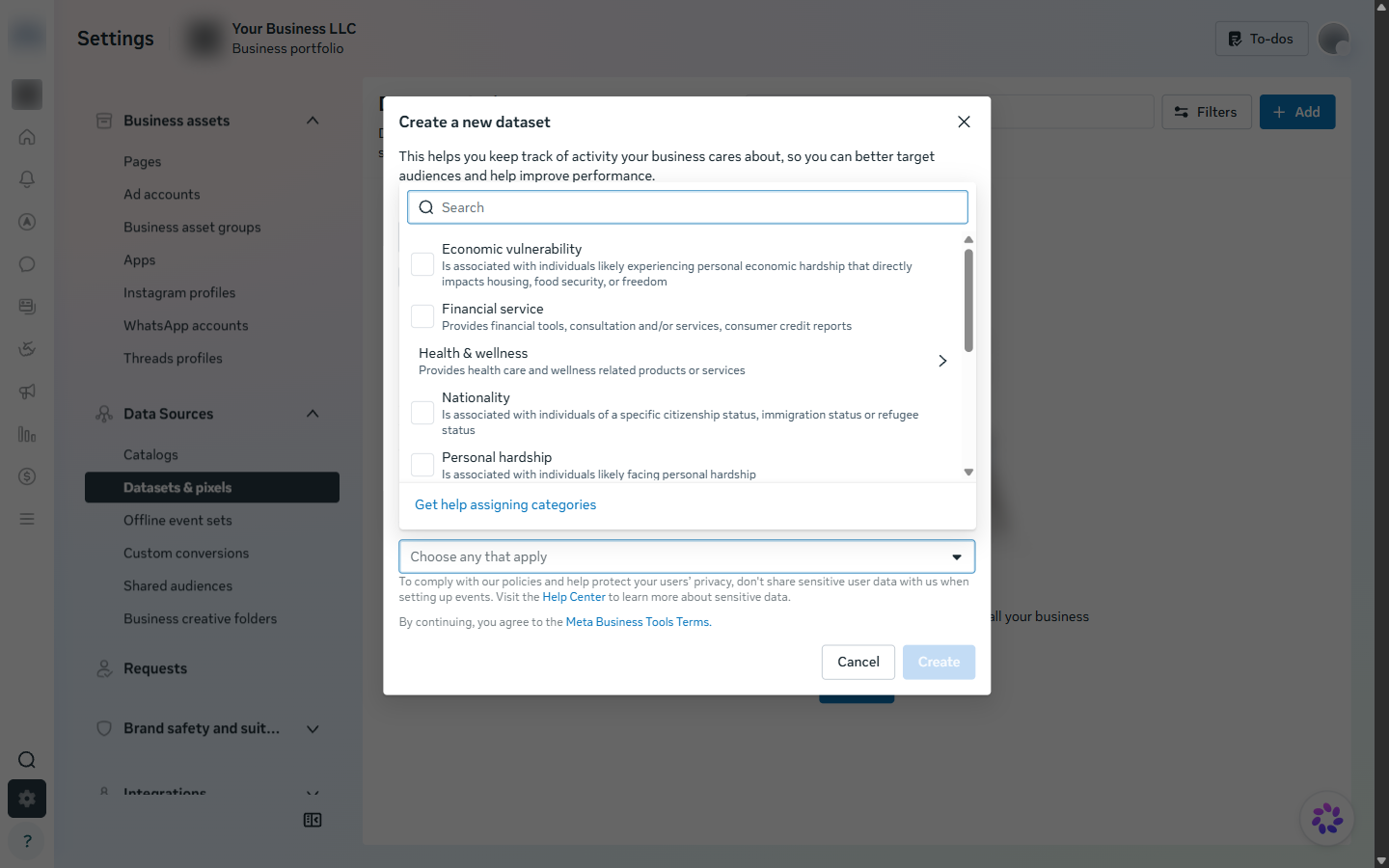
Buy-here-pay-here or in-house financing? Choose Financial service. Meta then limits what it accepts from this dataset, which keeps you inside its rules for credit advertising. If you only sell cars and send financing to outside lenders, leave categories empty.
Check leads access
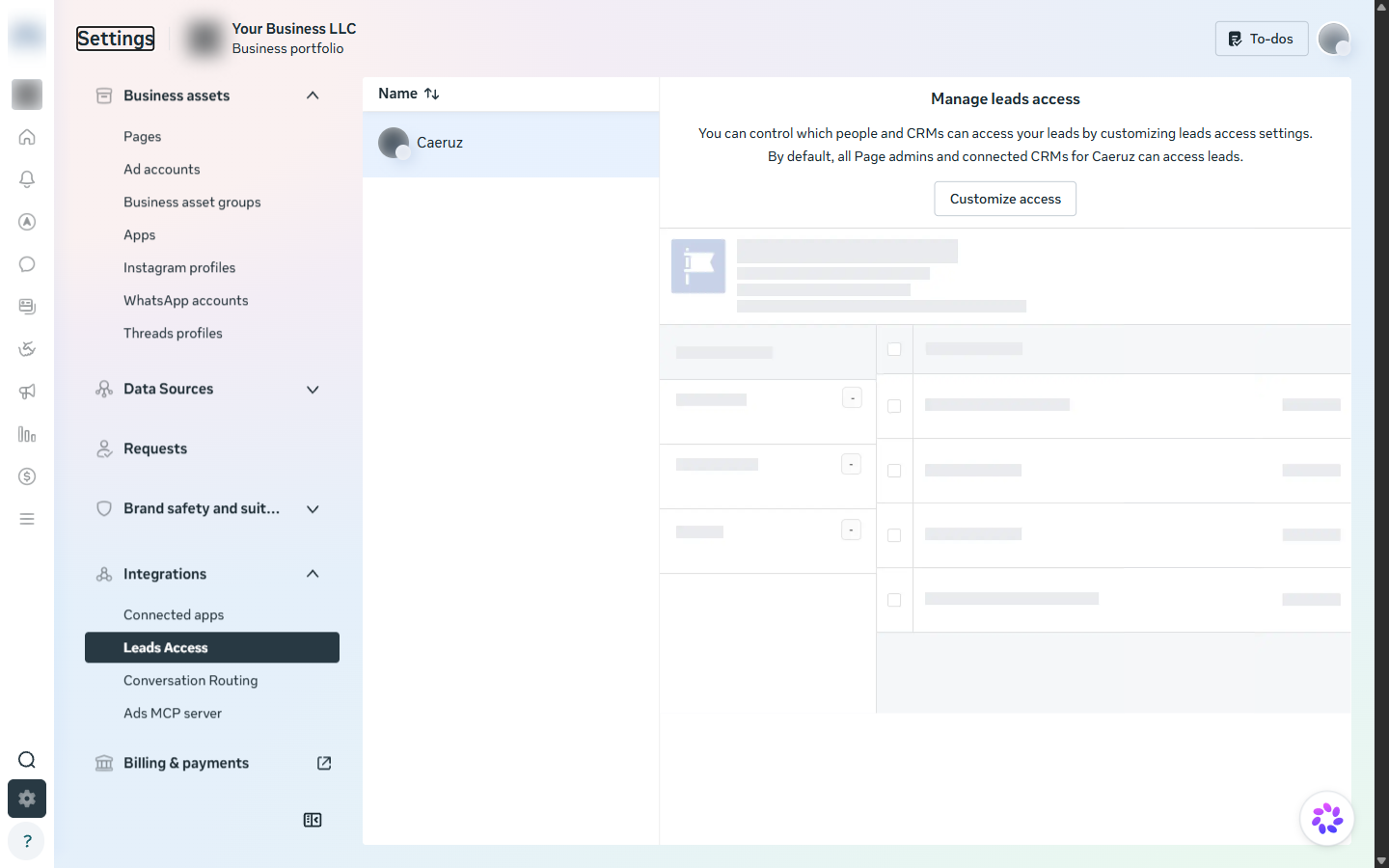
Leads from your Facebook and Instagram lead forms go to the apps your Page allows. By default every connected app is allowed, so most dealers have nothing to do here.
- Open Settings › Integrations › Leads access and select your Page.
- If you see Customize access with the message that all connected apps can access leads, you're done.
- If someone already customized access, open the CRMs tab after you finish M10, and assign Caeruz.
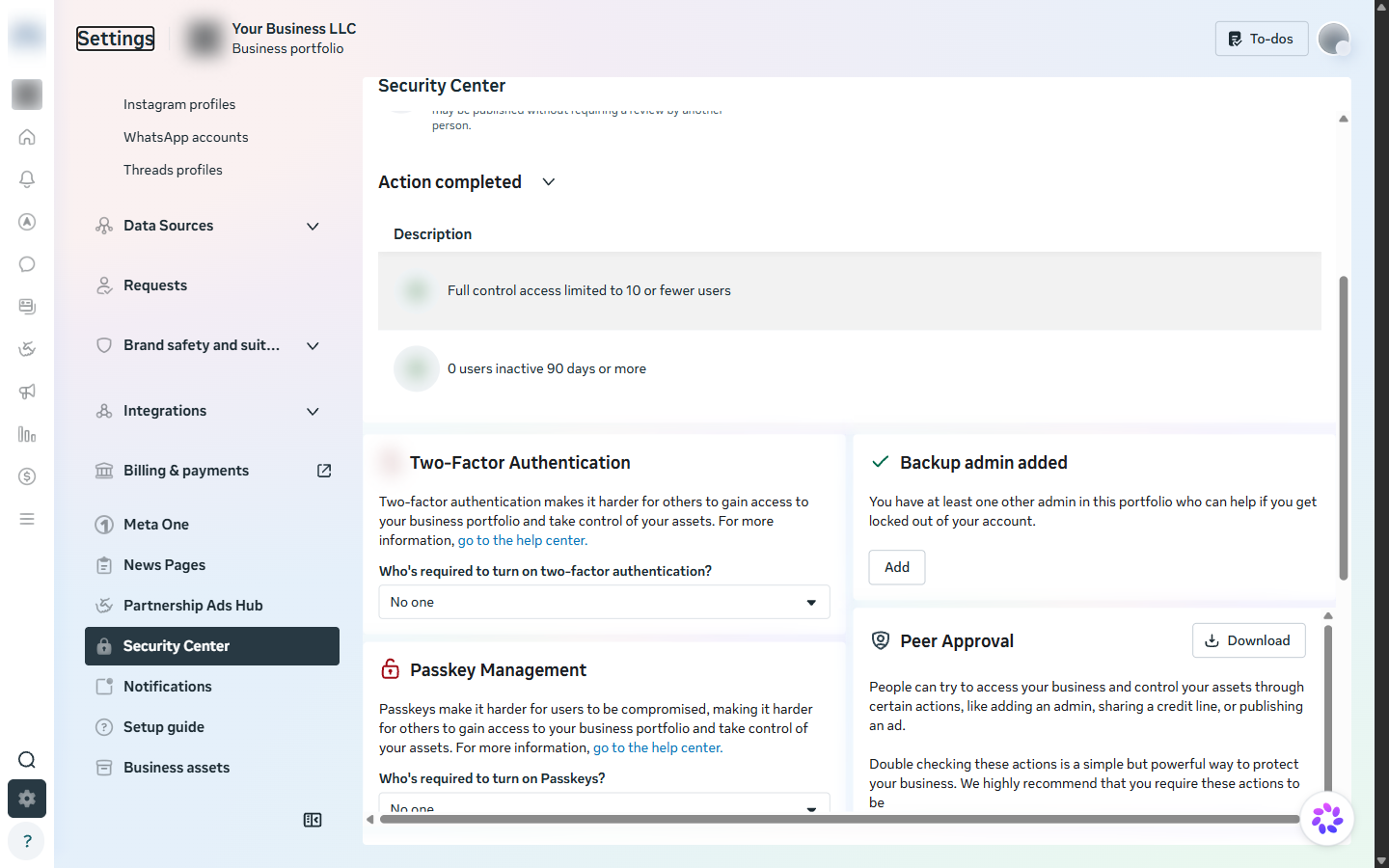
While you're in Settings: open Security Center, set Who's required to turn on two-factor authentication to Everyone, and add a second admin you trust. If you ever lose access to your profile, the backup admin can get the dealership back in.
Connect Meta to Caeruz
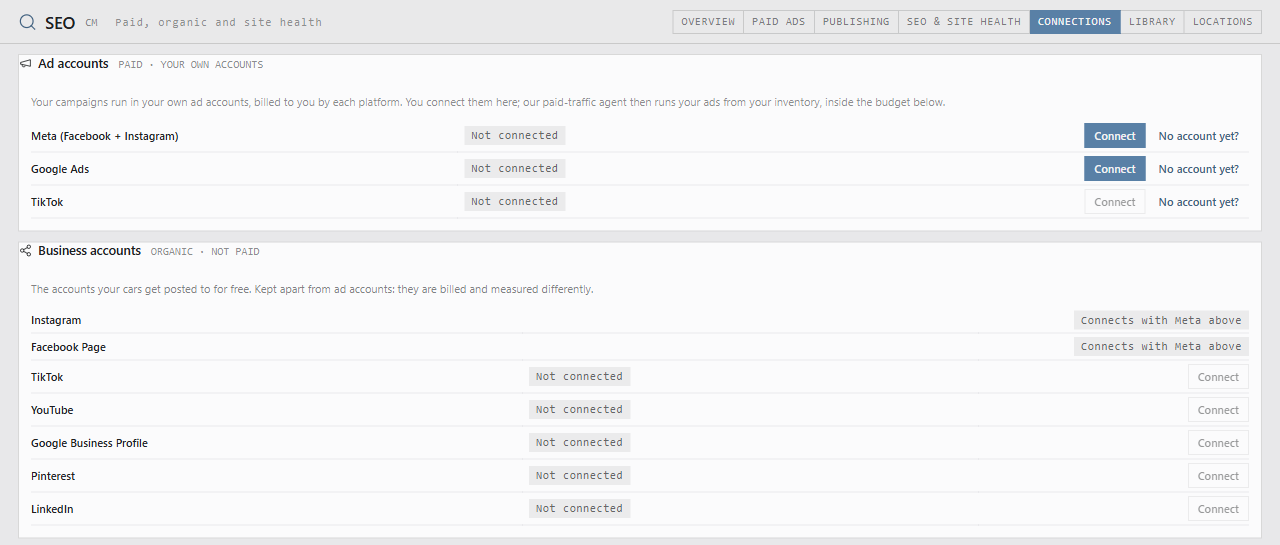
- In Caeruz, open SEO › Connections and click Connect next to Meta.
- Facebook opens. Log in as yourself, choose your dealership's business portfolio, and allow Caeruz access to your ad account, Page, Instagram account and dataset. Leave every permission on: each one powers a feature listed at the top of this guide.
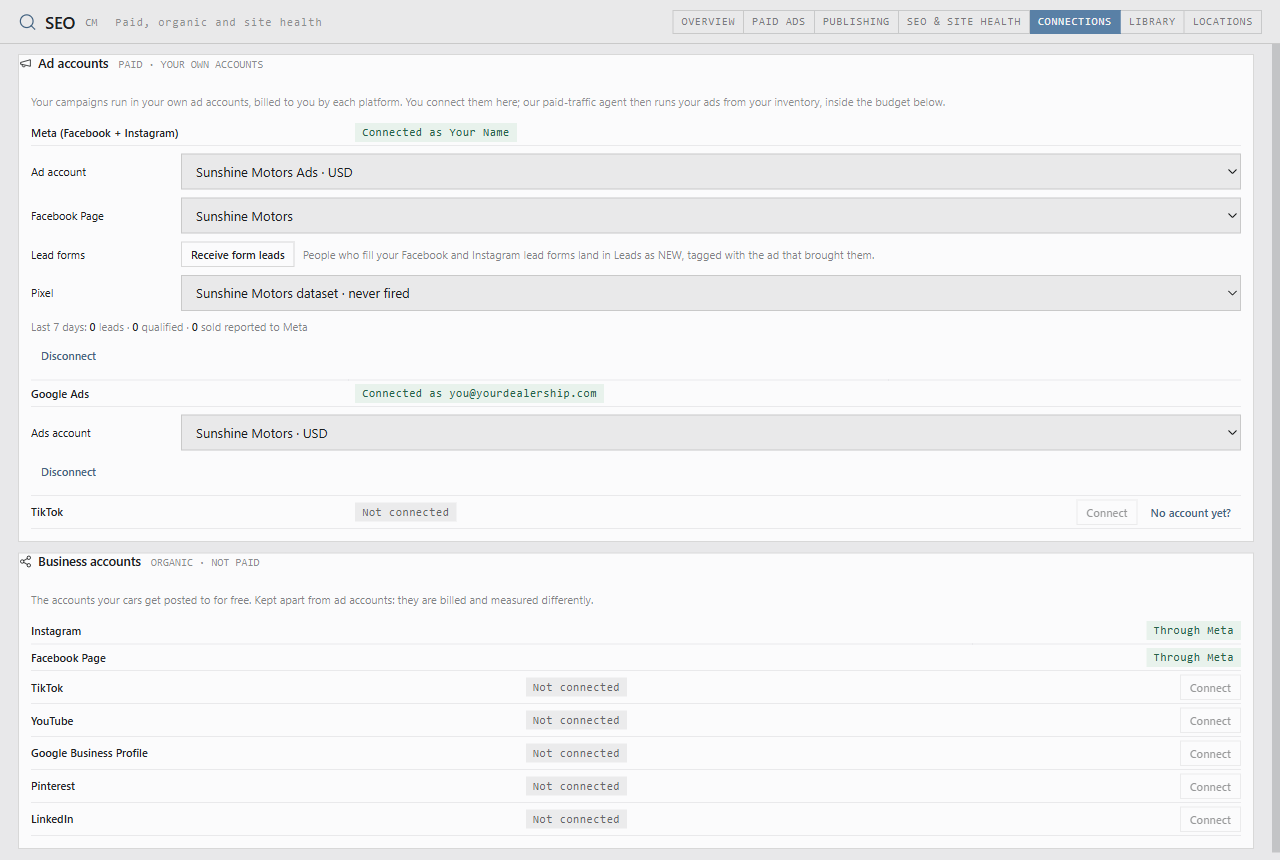
- Back in Caeruz, choose your Ad account, Facebook Page and Pixel (your dataset from M8).
- Click Receive form leads, so lead-form fills arrive in Leads.
Google Ads
You'll work at ads.google.com, signed in with the dealership's Google account. Turn on 2-Step Verification for that Google account first at myaccount.google.com/security.
Create the Google Ads account
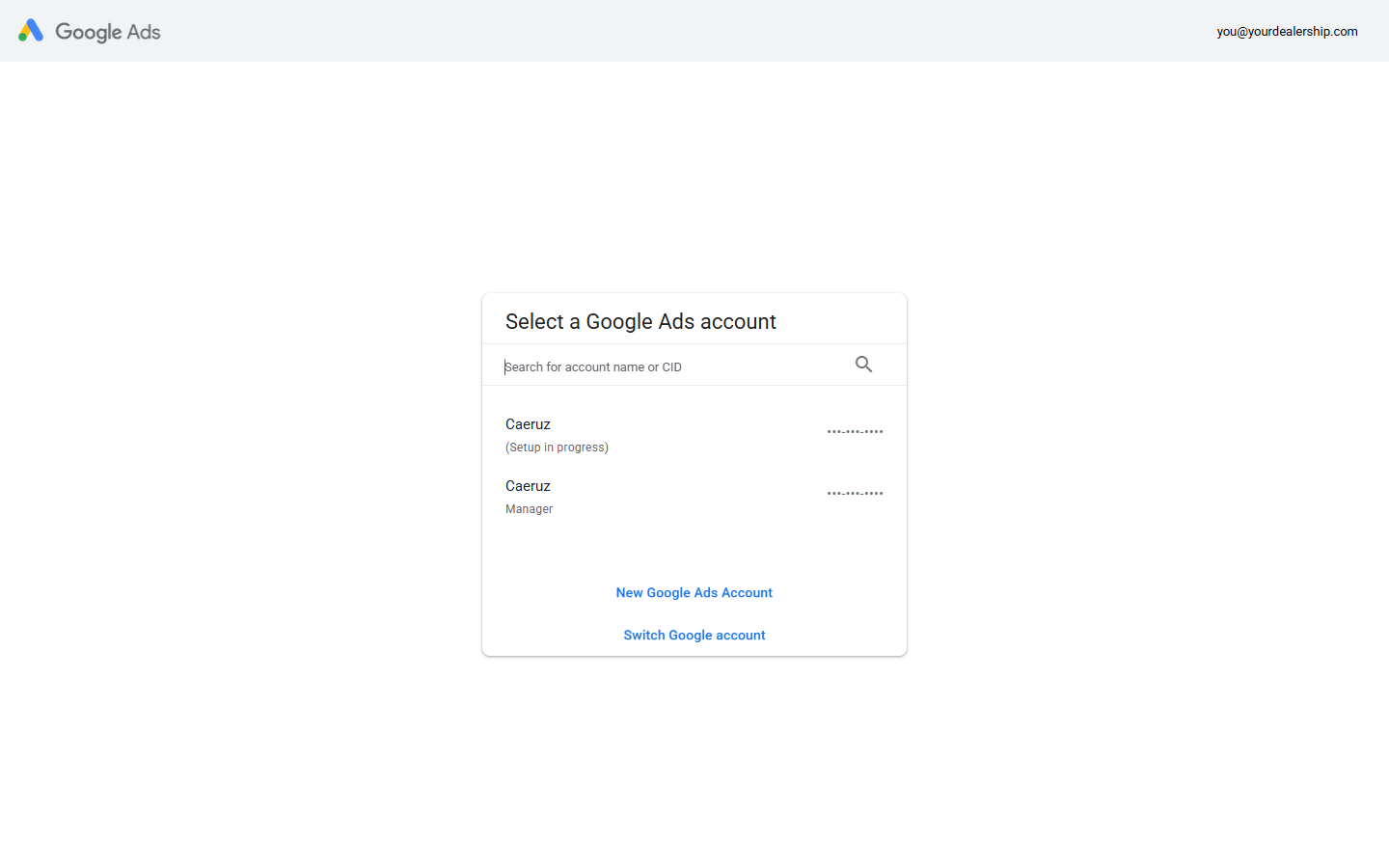
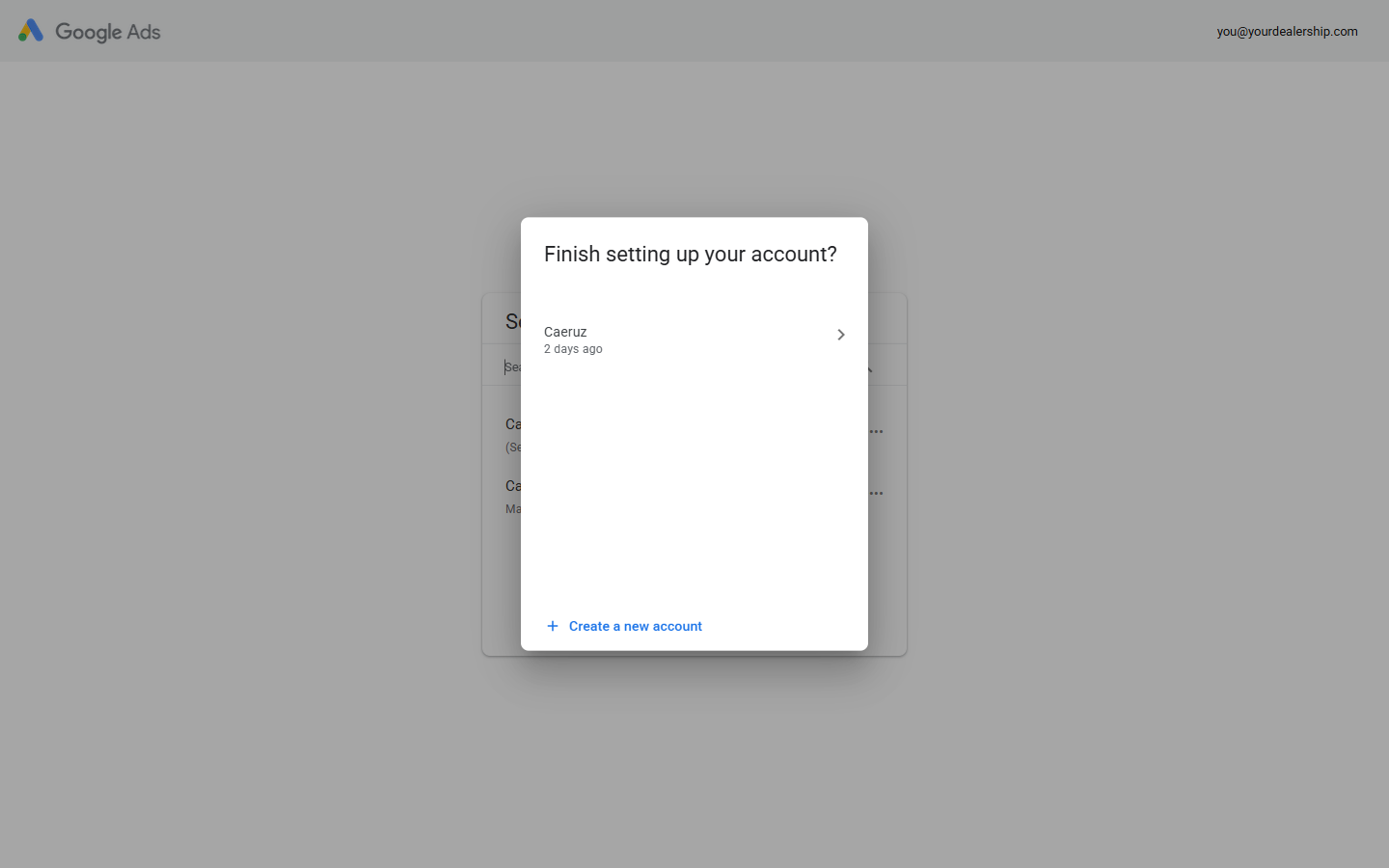
- Go to ads.google.com and sign in. If you already have accounts, Google lists them; click New Google Ads Account.
- Enter the dealership's business name and website.
- When Google asks you to build a first campaign, skip it: look for Switch to Expert Mode at the bottom of the page, then Create an account without a campaign. Caeruz will create campaigns for you.
- On the account details step, set billing country to United States, time zone to your dealership's, and currency to US dollar.
Time zone and currency are permanent in Google Ads too. Reports, statistics and billing all follow the time zone you choose.
Finish billing
- Choose Account type: Organization and enter the dealership's legal name and address.
- Add a business card or bank account and click Submit. A small temporary charge to verify the card can appear and clears within about a week.
- Your account is ready when it no longer says "Setup in progress" on the account list.
Google may ask you to verify your business. Advertiser verification asks for the legal name and documents. Complete it when Google asks; ads can pause until it's done.
Connect Google Ads to Caeruz
- In Caeruz, open SEO › Connections and click Connect next to Google Ads.
- Google opens. Sign in with the dealership's Google account and allow Caeruz to see and manage your Google Ads accounts.
- Back in Caeruz, choose your Ads account. Pick the dealership's own account, never one marked manager: manager accounts have no campaigns and Caeruz won't let you select them.
When everything is connected, Caeruz's Overview shows your spend against your ceiling and anything that needs your attention.